
A VPN icon in your taskbar is not proof your VPN is working. The only proof is a before-and-after check: your IP address, location, DNS servers, and WebRTC exposure must all change when the VPN connects. Here is the 2-minute check, what a pass looks like, and what to do when one check fails.
In brief
- Four checks in two minutes: IP, location, DNS, and WebRTC. What a pass looks like, what a fail looks like, and what to do when one check fails.
- Before you start: record your real details: With the VPN off, open a leak-test site — ipleak.net is the most complete single page — and write down four things:
- The 2-minute check: Connect your VPN to the server you normally use, wait for it to report connected, then reload the same test page and compare.
- What a pass looks like — all four together
- Browser-extension VPN vs system-wide VPN: why the check differs
“Is my VPN working?” is a better question than it sounds, because a VPN can look connected while leaking your real address through DNS or WebRTC. (New to VPNs? Start with what a VPN does and does not protect.) This guide is global: the checks work the same everywhere, and the tools are free. The method is simple — record your real details with the VPN off, connect, and compare. If anything still shows your real location or your internet provider, that check has failed, and the fix is different for each one.
Before you start: record your real details
With the VPN off, open a leak-test site — ipleak.net is the most complete single page — and write down four things:
- Your IP address. The public address your connection presents to the internet.
- Your location. The city and country the test reports for that address.
- Your DNS servers. The servers listed in the test’s DNS section — these will usually belong to your internet provider.
- Your WebRTC result. The WebRTC section shows whether your browser exposes your real IP address directly.
Keep that page open or note the four values. You will compare against them in a moment. Do not skip this step: without the “before” picture, a “pass” is a guess.
The 2-minute check
Connect your VPN to the server you normally use, wait for it to report connected, then reload the same test page and compare.
Check 1: IP address — it must change
Your IP address with the VPN on must be different from the one you recorded with it off. If it is the same, your VPN is not routing your traffic at all — the tunnel is not up, or the app is showing a connected state that is not real.
Pass: a different IP address.
Fail: the same IP address. Fix: disconnect, reconnect, and if it persists, switch server, then switch protocol. If it still fails, the app or the provider is broken — reinstall the app, and if that does not fix it, treat the provider as the problem.
Check 2: Location — it must match the server you chose
The reported location should now be the city and country of the VPN server you connected to — not your real location. A small mismatch (a neighbouring city in the same country) is normal: IP geolocation databases are approximate. A different country, or your real city, is not.
Pass: the reported location matches (or is near) your chosen server.
Fail: your real city or country. This usually means the same thing as an IP failure — your traffic is not going through the tunnel. Fix the same way: reconnect, switch server, switch protocol.
Check 3: DNS — no server may belong to your internet provider
This is the check most people miss, and the one that catches the most leaks. DNS is how your device turns “example.com” into an address. If your DNS requests go to your internet provider’s servers while the VPN is on, your provider can see every site you look up — even though your traffic itself is encrypted. That is a DNS leak.
On the test page, look at the DNS server list. Every entry should belong to the VPN provider or to a third-party resolver the VPN uses — never to your internet provider. If you see your provider’s name, or an address in your home country when you connected to a server abroad, you have a DNS leak.
Pass: DNS servers belong to the VPN provider (or its chosen resolver); none belong to your provider.
Fail: your provider’s DNS servers appear. Fixes, in order: (1) check the VPN app for a DNS leak protection setting and turn it on; (2) disconnect and reconnect to a different server; (3) turn off DNS-over-HTTPS in your browser — Chrome, Edge, and Firefox all have a “secure DNS” setting that can send lookups outside the tunnel; (4) flush your DNS cache after any network change (on Windows: ipconfig /flushdns; on macOS: sudo dscacheutil -flushcache and sudo killall -HUP mDNSResponder); (5) if the leak persists across servers, the provider’s DNS handling is the problem — consider switching providers.
Check 4: WebRTC — your real IP must not appear
WebRTC is a browser feature used for video calls and real-time communication. It can reveal your real IP address directly to a website, bypassing the VPN entirely — even when checks 1–3 all pass. This is a browser problem, not a VPN problem, which is why it is the check most VPN apps cannot fix for you.
On the test page, the WebRTC section should show no public IP address, or only the VPN server’s address. If it shows the same IP address you recorded with the VPN off, you have a WebRTC leak.
Pass: no real IP in the WebRTC section (blank, “n/a”, or the VPN address only).
Fail: your real IP appears. Fixes: (1) use a VPN browser extension that blocks WebRTC, if your provider offers one; (2) disable WebRTC in your browser’s settings — Firefox exposes this directly; Chrome requires an extension; (3) use a browser with built-in WebRTC controls for sensitive sessions. Note that disabling WebRTC can break video calls in that browser, so many people keep one browser with WebRTC disabled for private browsing and another for calls.
What a pass looks like — all four together
A working VPN gives you this picture:
| Check | VPN off | VPN on (pass) |
|---|---|---|
| IP address | Your real address | A different address |
| Location | Your real city | The server’s city/country |
| DNS servers | Your provider’s servers | The VPN provider’s servers |
| WebRTC | Your real IP visible | No real IP visible |
If all four pass, your VPN is working. Run this check once when you first install a VPN, again after any app update, and again whenever you change provider or server country. It takes two minutes and it is the only way to be sure.
Browser-extension VPN vs system-wide VPN: why the check differs
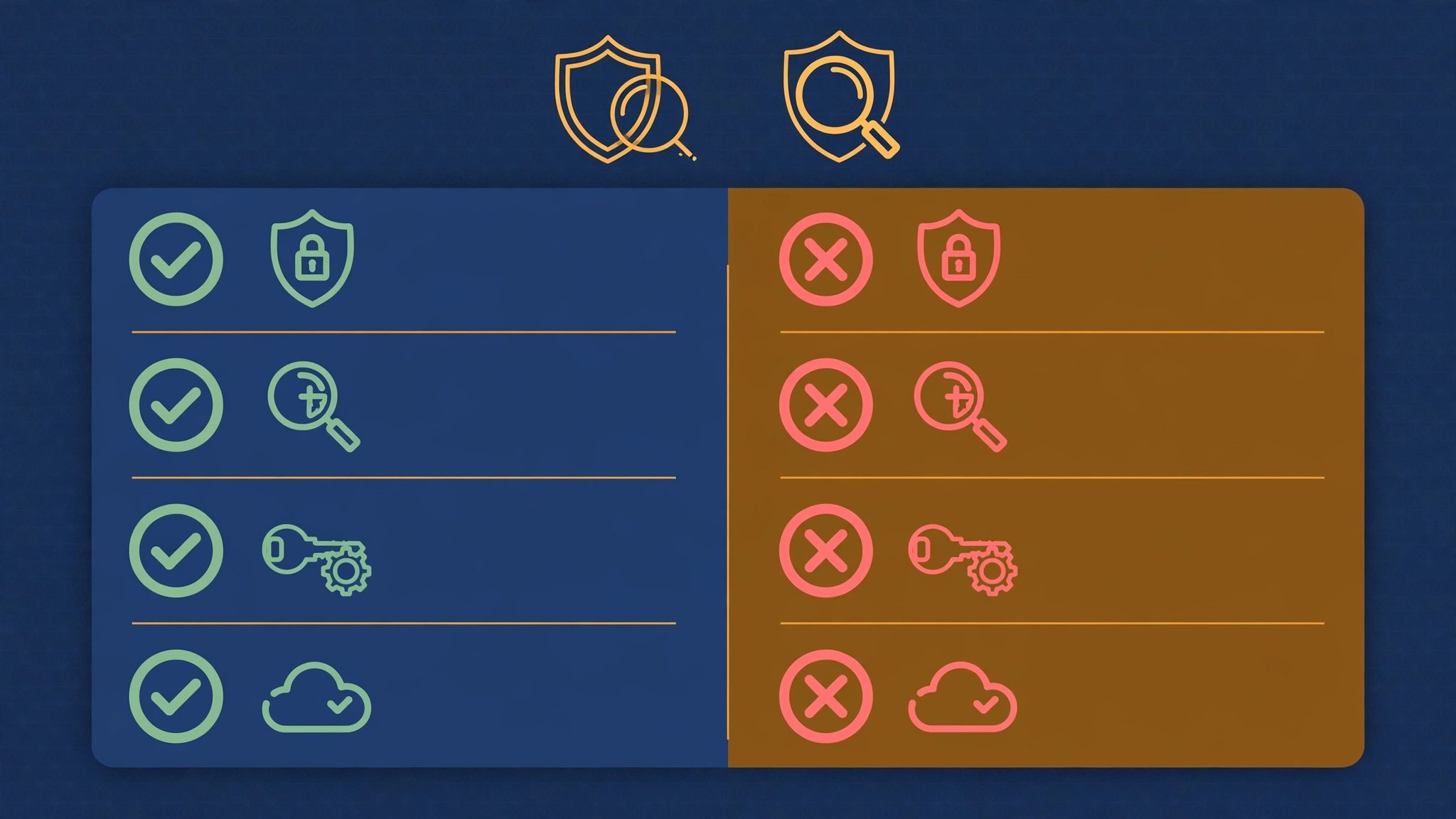
Not all VPNs cover the whole device. A VPN browser extension protects only the traffic in that browser — other apps, other browsers, and your operating system’s own traffic go out unprotected. A system-wide VPN app (the main app you install on your computer or phone) protects everything on the device.
This matters for the check: if you are testing a browser extension, run the test in the browser the extension is installed in. The check will pass there — and fail in any other browser, because the extension does not cover it. That is expected behaviour, not a leak. If you want whole-device protection, use the system-wide app, not just the extension.
It also matters for the fix: a WebRTC leak inside the extension’s browser is the extension’s problem to solve; a DNS leak outside the browser is something a browser extension cannot fix at all.
What to do when one check fails
| Failed check | Most likely cause | First fix |
|---|---|---|
| IP unchanged | Tunnel not up | Reconnect → switch server → switch protocol |
| Location wrong | Tunnel not up / geolocation lag | Same as IP; retest after 30 seconds |
| DNS leak | Browser DNS-over-HTTPS or provider DNS handling | Turn off browser secure DNS → flush cache → switch server |
| WebRTC leak | Browser exposing real IP | VPN extension WebRTC block, or disable WebRTC in the browser |
One more rule: a single failed check is a real problem, even if the other three pass. A VPN that hides your IP but leaks your DNS still tells your provider every site you visit. A VPN that passes DNS but leaks WebRTC still exposes your real address to any site that asks. All four must pass.
If a check keeps failing across servers, protocols, and a reinstall, the honest conclusion is that the provider is not doing its job. A VPN that cannot hold a clean connection is a refund, not a settings project — test any replacement with this same 2-minute check before committing. (If the VPN will not connect at all — for example on hotel or airport Wi-Fi — that is the network blocking the tunnel, not a leak: see our public Wi-Fi VPN fix guide.)
The bottom line
Do not trust the icon. Trust the before-and-after: IP changed, location matched, DNS clean, WebRTC silent. Four checks, two minutes, once per install and once per update. That is the whole method — and it is the difference between a VPN that protects you and one that only looks like it does.
Sources

Shoaib Hassan
Shoaib Hassan is the founder and editor of AuTechWire, an independent technology publication covering broadband, mobile networks, privacy, startups, and consumer tech.
Related Stories

Crypto Hacks Are Surging but Stealing Less — Here’s Why
In brief On October 22, 2026, Haseeb Qureshi, managing partner of the crypto investment firm Dragonfly, said cybersecurity…

ARTEX: The AI Pentesting Tool Used in the ConnectWise Hack
In brief On October 21, 2026, Microsoft said a China-state aligned group it tracks as Storm-0940 used an…

Chrome Wants to Catch Scams Before You Paste the Damage Into Your Terminal
In brief On October 20, 2026, Google announced three additions to Chrome's Enhanced Protection mode: a new two-tier…